Mac workflow
AI dictation software on Mac: Wispr Flow, Mac Dictation, Google Docs, and Otter
October 28, 2026 · 8 min read · By Forthright Tech
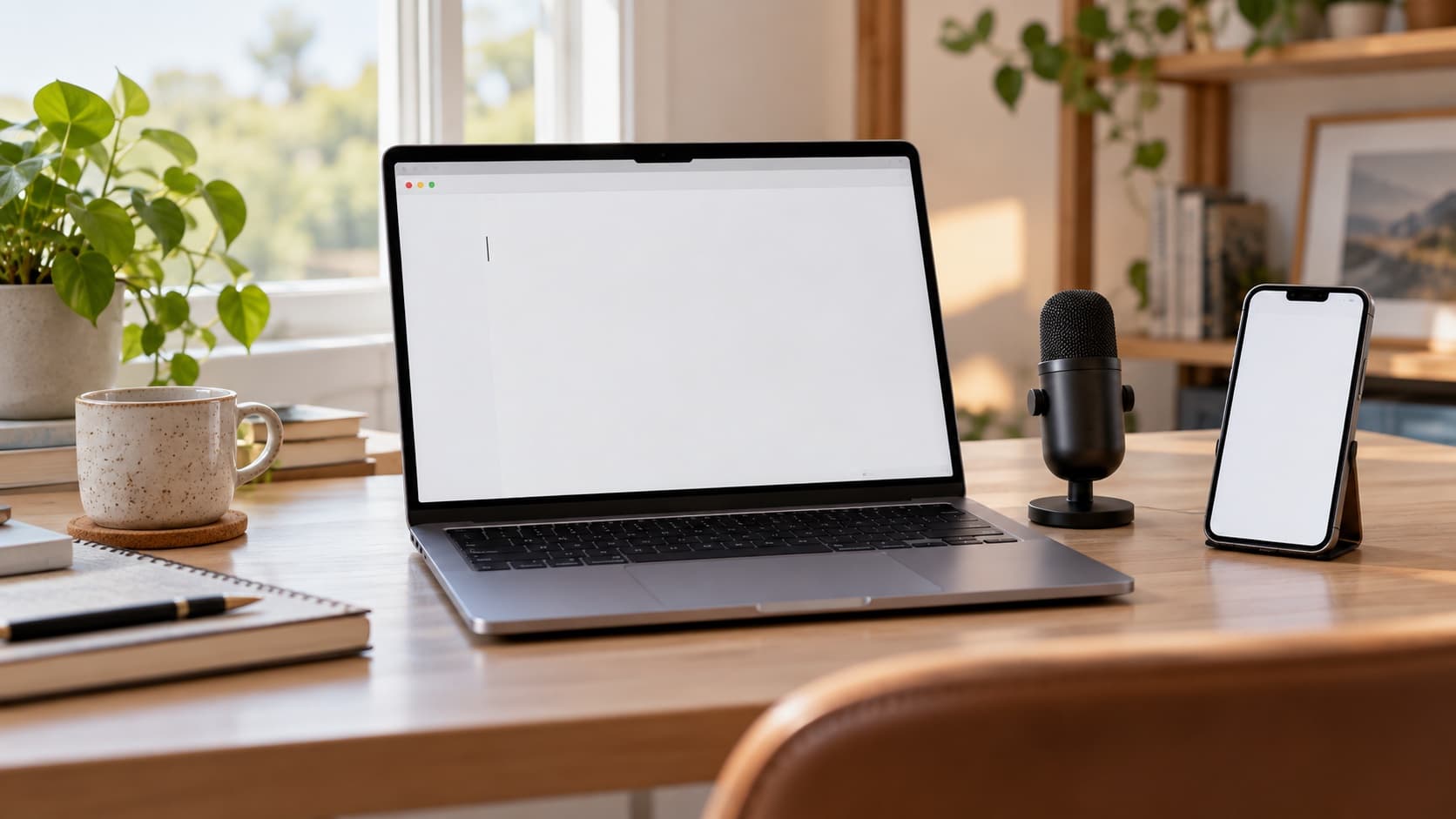
Compare Mac Dictation, Wispr Flow, Google Docs voice typing, and Otter by where they put words, what they transcribe, and how the microphone fits in.
Otter is for transcribing meetings into notes; iMic does not transcribe. It sends microphone audio from your iPhone to your Mac, while a dictation or meeting app handles recognition.
The first question when comparing AI dictation software is where you want the words to appear. Dictation inserts speech into the field you are using now. Meeting transcription captures a conversation so you can review notes later. Those jobs can overlap in a product, but they are not interchangeable.
Dictation types into the focused field; transcription writes notes after a meeting
With dictation, click where you want text, start the tool, and speak. The result appears in the focused text field: a message, document, code editor, or form. You can keep moving between compatible apps without opening a separate transcript first.
Meeting transcription has a different destination. It records or listens to a call, identifies what was said, and gives you a transcript, summary, or action items afterward. That is the core reason to consider Otter dictation carefully: Otter’s main meeting assistant is useful for conversations, but it is not a system-wide replacement for a Mac dictation shortcut that types into the current field.
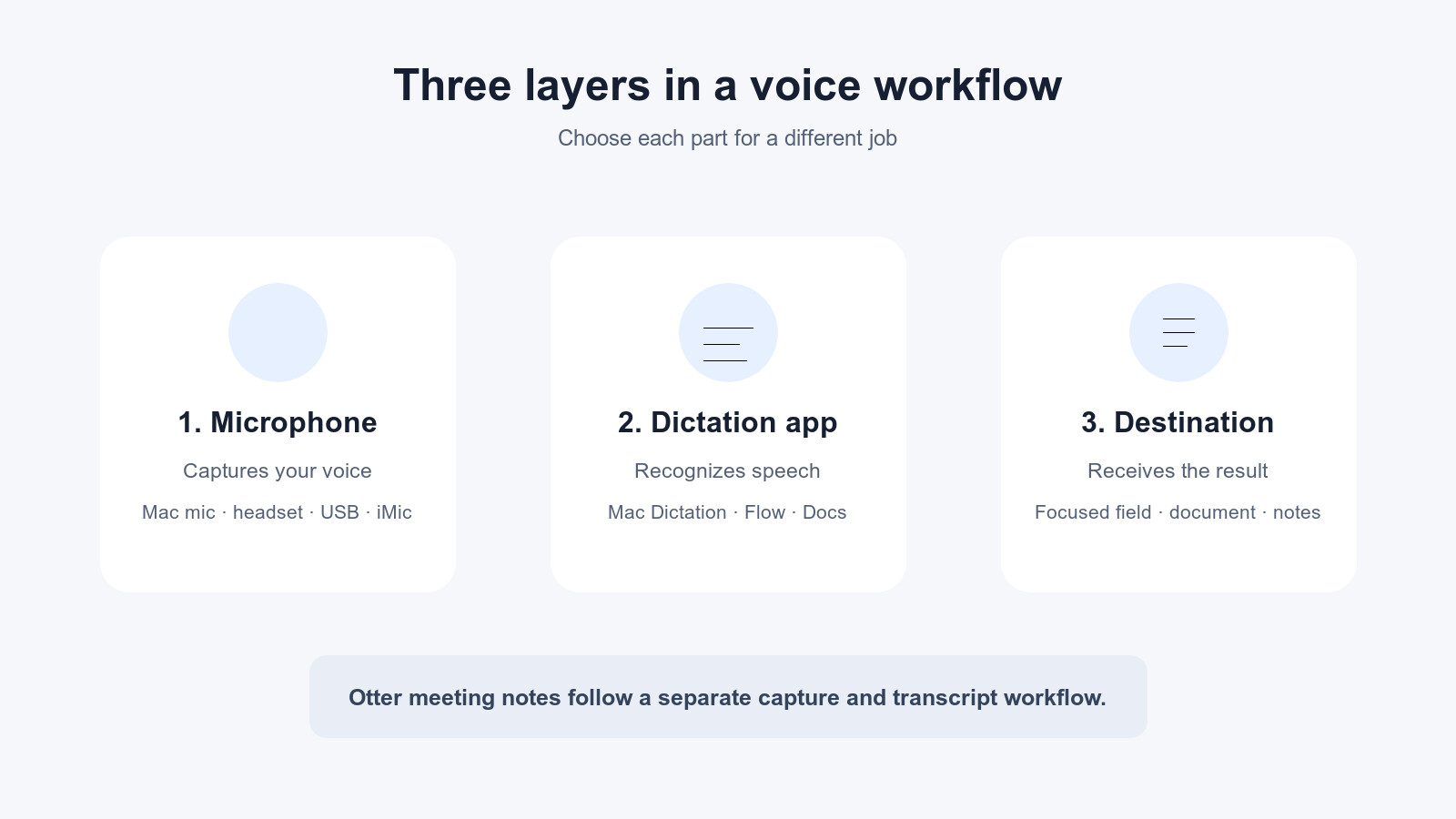
The microphone supplies audio. The dictation or transcription service turns it into words. The destination is where those words are inserted or saved. A single product may cover more than one layer, but selecting an iMic input does not choose a transcription service.
Mac Dictation and Wispr Flow (system-wide; you still choose the input device)
Mac Dictation is built into macOS and can enter text in many text fields. Use its keyboard shortcut or the Dictation control, speak, then stop when you are done. Availability and processing behavior can depend on your language and macOS settings; Apple describes the Dictation controls and audio privacy choices in its Mac Dictation guide.
Wispr Flow is a separate dictation app designed to work across Mac apps. Activate it where you want text, speak, and let Flow return the words to that field. It can apply formatting and context features, so check the text before sending or publishing it. Flow’s current privacy documentation says dictated audio is processed in the cloud. It also describes separate controls for model improvement and cloud storage, so review the settings that apply to your account in Wispr Flow’s privacy overview and its security and privacy FAQ.
Both tools use the Mac’s selected input. If you dictate through the laptop mic, AirPods, a USB mic, or iMic, the software still decides how speech is recognized. See Mac dictation microphones and Wispr Flow for the input-device tradeoffs.
Google Docs voice typing and Chrome Talk to Type (browser-only; Talk to Type is cloud)
Google Docs voice typing is a document feature: open a Google Doc, choose Tools → Voice typing, and dictate into that document. It suits drafting in Docs, but it does not follow you into native Mac apps. Google’s voice typing instructions cover supported browsers, languages, and voice commands.
Chrome Talk to Type is a distinct browser feature for speaking into web text fields. Its availability and controls differ from Docs voice typing. Google says Talk to Type sends voice recordings and related information to provide the feature; read its Talk to Type help and data details before enabling it. For setup and microphone troubleshooting in Docs, see Google Docs voice typing on Mac.
Otter (Zoom, Meet, Teams notes; it does not replace a dictation app)
Otter is built around meeting capture and follow-up: its assistant can join supported Zoom, Google Meet, and Microsoft Teams meetings and produce transcripts and summaries. That is handy when you want a record of a discussion without typing notes throughout it. Check Otter’s current meeting integrations and privacy and security information for the plans and settings that apply to your account.
A meeting transcript is not the same as text typed into the field that currently has your cursor. If your task is to compose a message, write a paragraph, or dictate code in an editor, use Mac Dictation, Wispr Flow, or a browser tool that supports the field. If your task is to revisit what people said in a call, Otter is the closer fit. You can use both kinds of tool in a broader workflow; just treat their audio capture and data handling as separate choices.
The microphone is a separate choice
Your dictation app and your microphone answer different questions. The app recognizes speech and decides what text to return. The microphone determines which audio reaches that app. Change the Mac input in System Settings → Sound → Input, then check the input meter while speaking. The selected device is usually the one a system-wide dictation app receives, subject to that app’s own permissions and settings.
With iMic, the iPhone acts as a microphone for the Mac. Choose iMic as the Mac input, then use whichever compatible dictation app you prefer. The phone is the audio source; Mac Dictation, Wispr Flow, Docs, or another service handles the words. iMic does not perform speech recognition or meeting transcription.
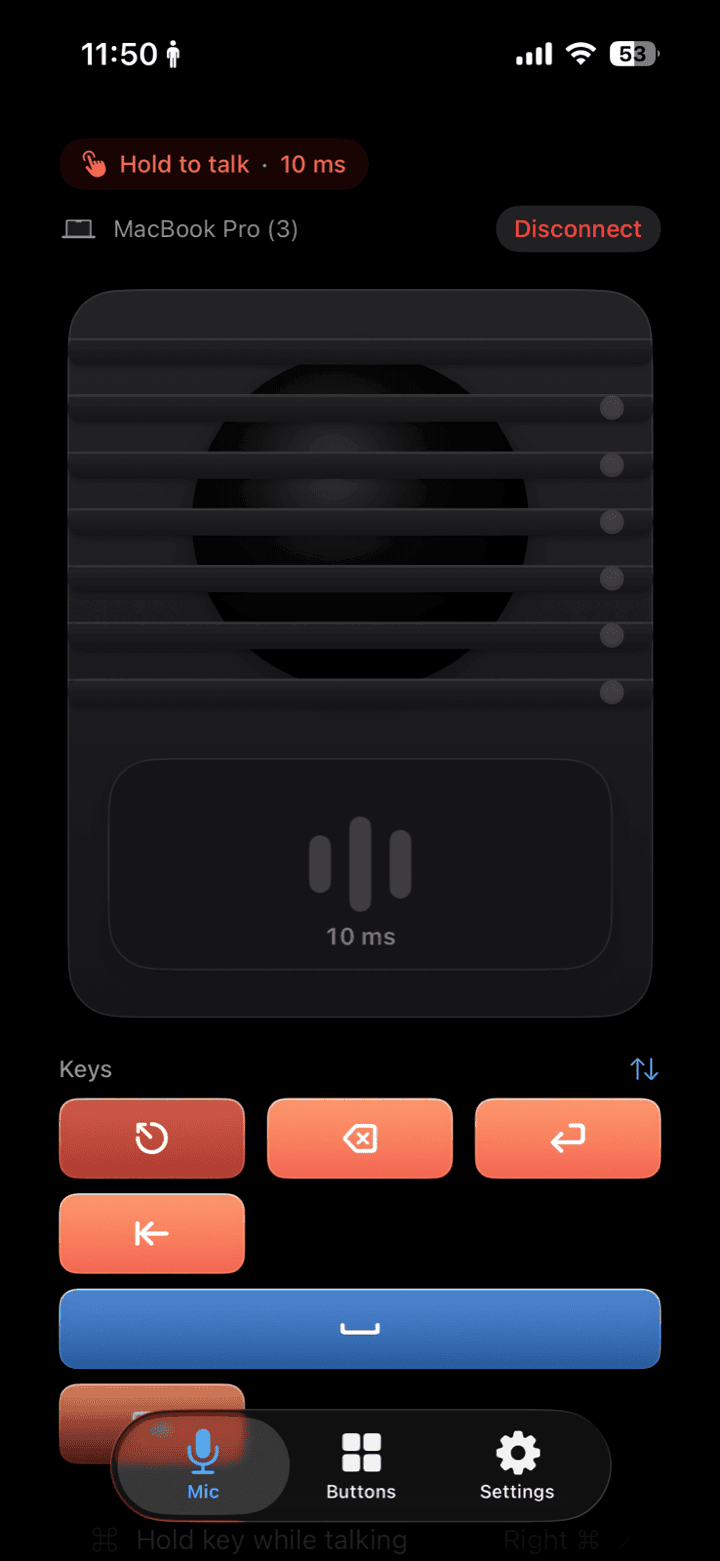
The iMic screen shows the phone acting as a microphone source. It is not a transcription screen.
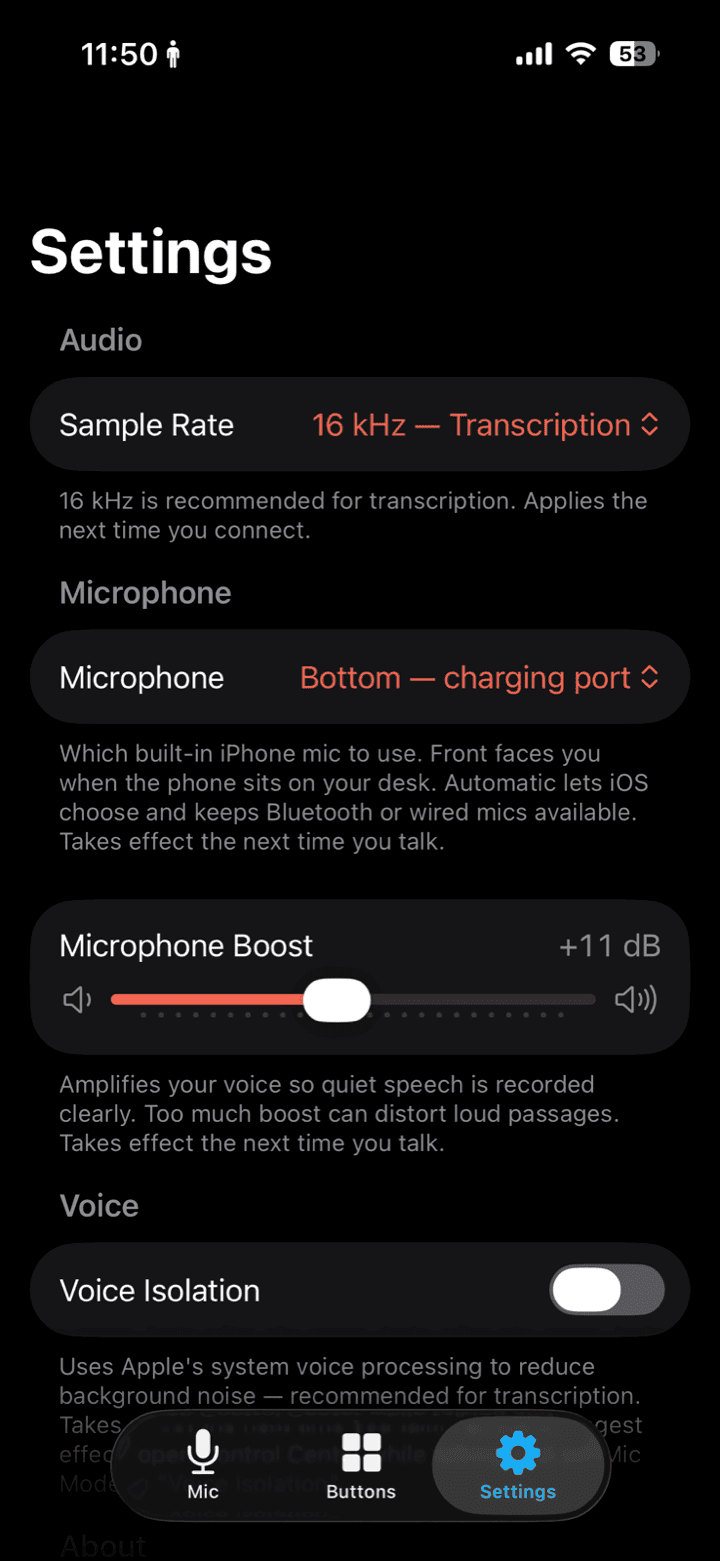
These are actual iMic settings, included to show the microphone layer without inventing app UI.
Where the audio goes (iMic stays on the local network; each app’s privacy is its own)
The audio route and the transcription route are separate. iMic carries microphone audio from the iPhone to the Mac over the local network; it does not send audio through an iMic cloud transcription service. After that, the selected app handles recognition according to its own service and settings. A local microphone connection does not make a cloud dictation service local.
That distinction matters when choosing software. Apple, Wispr Flow, Google’s browser or Docs features, and Otter have different processing, retention, and account controls. Wispr Flow currently documents cloud processing for dictation; Google’s Talk to Type help describes cloud handling; and meeting capture in Otter has its own privacy controls. Check each provider’s current policy and settings before speaking sensitive material, especially in a work or regulated account.
For hands-free development ideas, see vibe coding hands-free and voice vibe coding in an open office. If the need is to talk during calls rather than create a transcript, push-to-talk for meetings covers that separate workflow.
If you already have an iPhone, iMic can be one way to bring its microphone audio to your Mac while you choose the dictation or meeting app that fits the job. Start with the app’s privacy settings and a short test in the field where you intend to speak.
Ready to try iMic?
Turn your iPhone into your Mac’s microphone and shortcut remote. $5.99/year with a 7-day free trial, or $9.99 for a lifetime license on two Macs.
Get iMic