Use case
Do you need a vibe coding mic? Clip-on, handheld, or the phone you already have
October 26, 2026 · 6 min read · By Forthright Tech
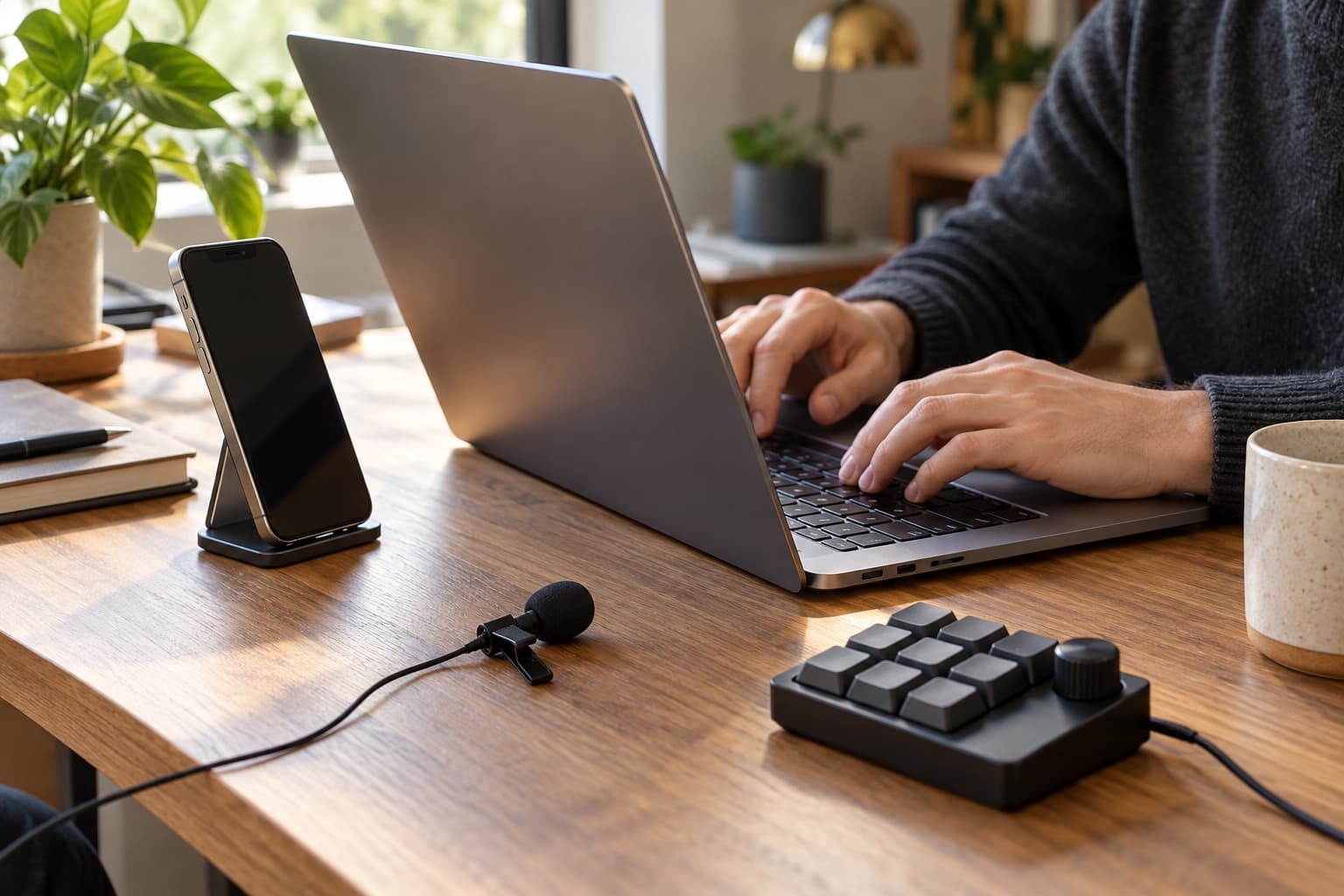
A practical look at vibe coding mic setups—from lavaliers and macro pads to an iPhone—with push-to-talk, hotkeys, and review-before-send in mind.
A vibe coding session is a loop: describe a change, inspect what the assistant made, then steer the next step. Voice can make that loop feel more conversational, especially when your hands are already on the keyboard. But does that mean you need a dedicated vibe coding mic—or another device on your desk?
A small hardware poll on Reddit raised the usual candidates: a lavalier, a handheld remote, a macro pad, or a ring. The useful question is less “which gadget is best?” and more “what part of talking to an AI is actually slowing you down?” For many people, the iPhone they already own can cover both audio input and a push-to-talk button. The remaining work is choosing a dictation app and a control path that fit your setup.
Pick the friction you want to remove
| Setup | What it can help with | Tradeoffs to consider |
|---|---|---|
| Clip-on lavalier | Keeps a microphone close to your mouth while you move around | A cable or wireless link adds another thing to connect, charge, and position; check that your Mac and dictation app can use its input |
| Handheld remote | Gives you a physical button for starting or holding dictation | It may solve the control problem without changing which microphone captures your voice; check how it connects and whether its button can trigger your chosen action |
| Macro pad | Puts several shortcuts on reachable keys | Requires desk space and configuration, and its shortcuts can collide with existing dictation or app hotkeys |
| Ring controller | Offers a small, wearable control surface | Comfort, charging, gesture reliability, and shortcut support matter; it may not provide a microphone |
| iPhone | Already combines a microphone with a screen and physical buttons | You need a way to route its audio to the Mac and map a button to a useful action; phone placement and network setup can matter |
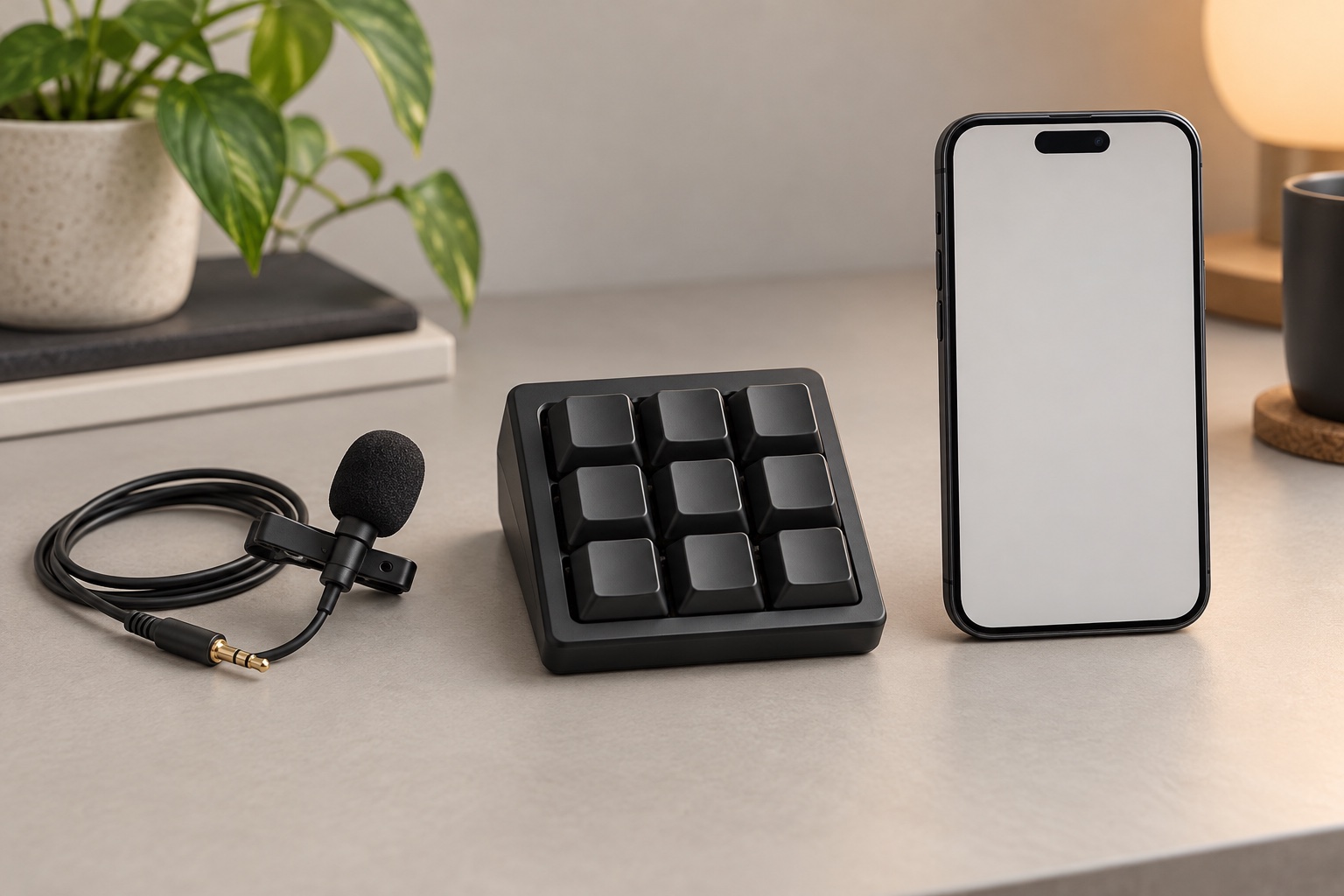
Three different jobs are easy to mix up: capturing your voice, triggering dictation, and controlling the prompt workflow. A single device does not always do all three.
A mic does not automatically make a voice workflow
A microphone captures sound. A dictation app listens, turns speech into text, and puts that text somewhere useful. Depending on the app, it may also offer controls for starting and stopping, punctuation, corrections, or sending the finished prompt. Those are separate pieces of a vibe coding setup.
Before buying hardware, try your current mic and dictation flow in the app where you work. If the transcription is usable but starting and stopping is awkward, a remote button or macro pad may address the real problem. If the control feels fine but the laptop mic is poorly placed, changing the mic or its position could help. If you want to speak from farther away, a phone or clip-on mic might be more convenient, but room acoustics and distance still affect what the microphone picks up.
No microphone promises a noise-cancellation miracle. A closer mic can make your voice more prominent relative to the room, but a keyboard, other people, and room echo can still be audible. Try the setup in the place you actually code, and listen to a short recording before committing to a new device.
Push-to-talk is useful when you can review before sending
For AI prompts, hands-free input is not automatically the goal. Many power users want a deliberate push-to-talk action and a chance to read the transcript before it reaches the assistant. That lets you catch a changed function name, a missing “don’t,” or an instruction that came out differently than intended.
A hold-to-talk control can start capture while you hold a button and stop when you release it. A tap-to-toggle control can be easier to use with some devices, but it leaves you responsible for remembering to stop. Either way, check what the dictation app does after capture: does it insert text into the active field, leave the transcript for review, or submit it? Configure the workflow so you know when words are merely transcribed and when they are sent.
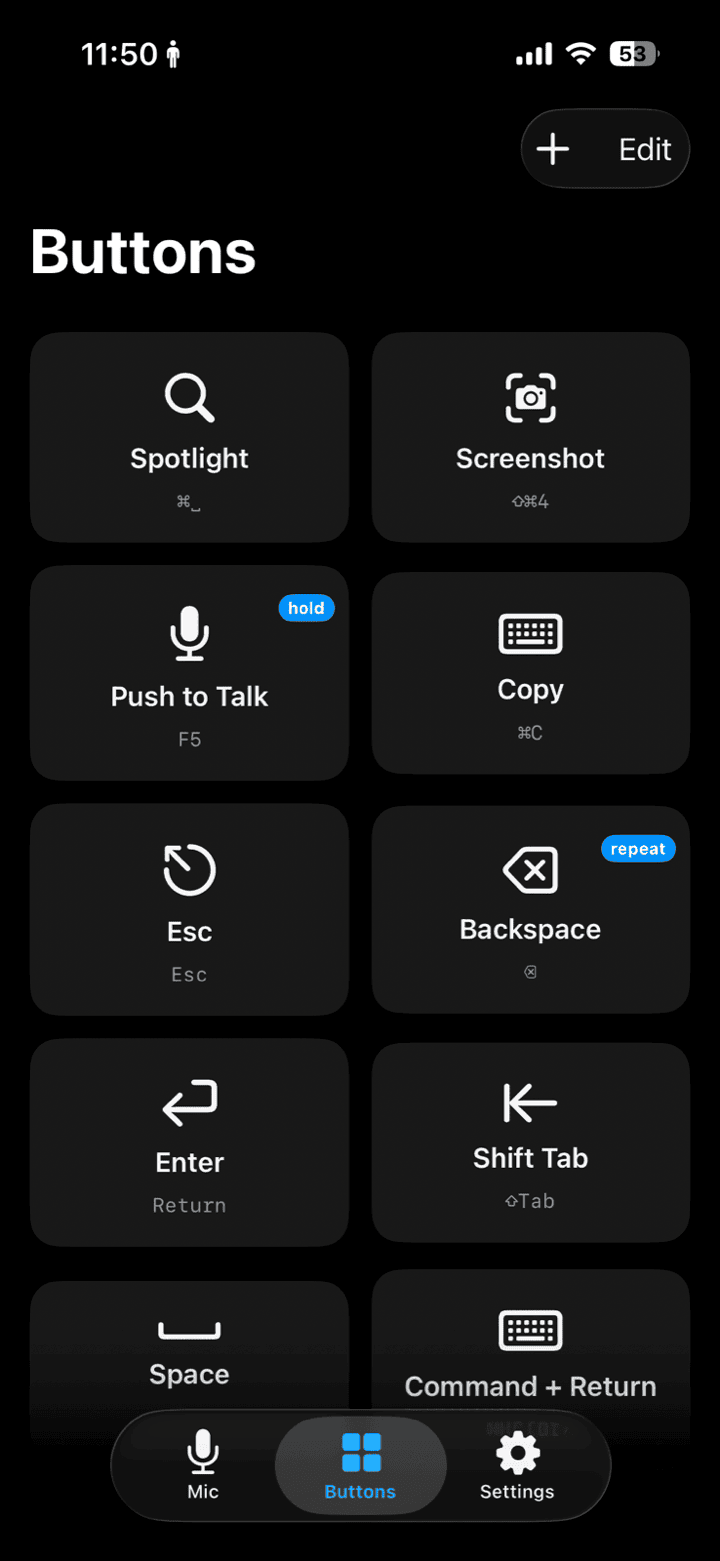
An iPhone can act as a shortcut remote when a companion app maps its buttons to Mac actions. Use a button for a deliberate dictation start or stop, then review the text in your AI app before sending.
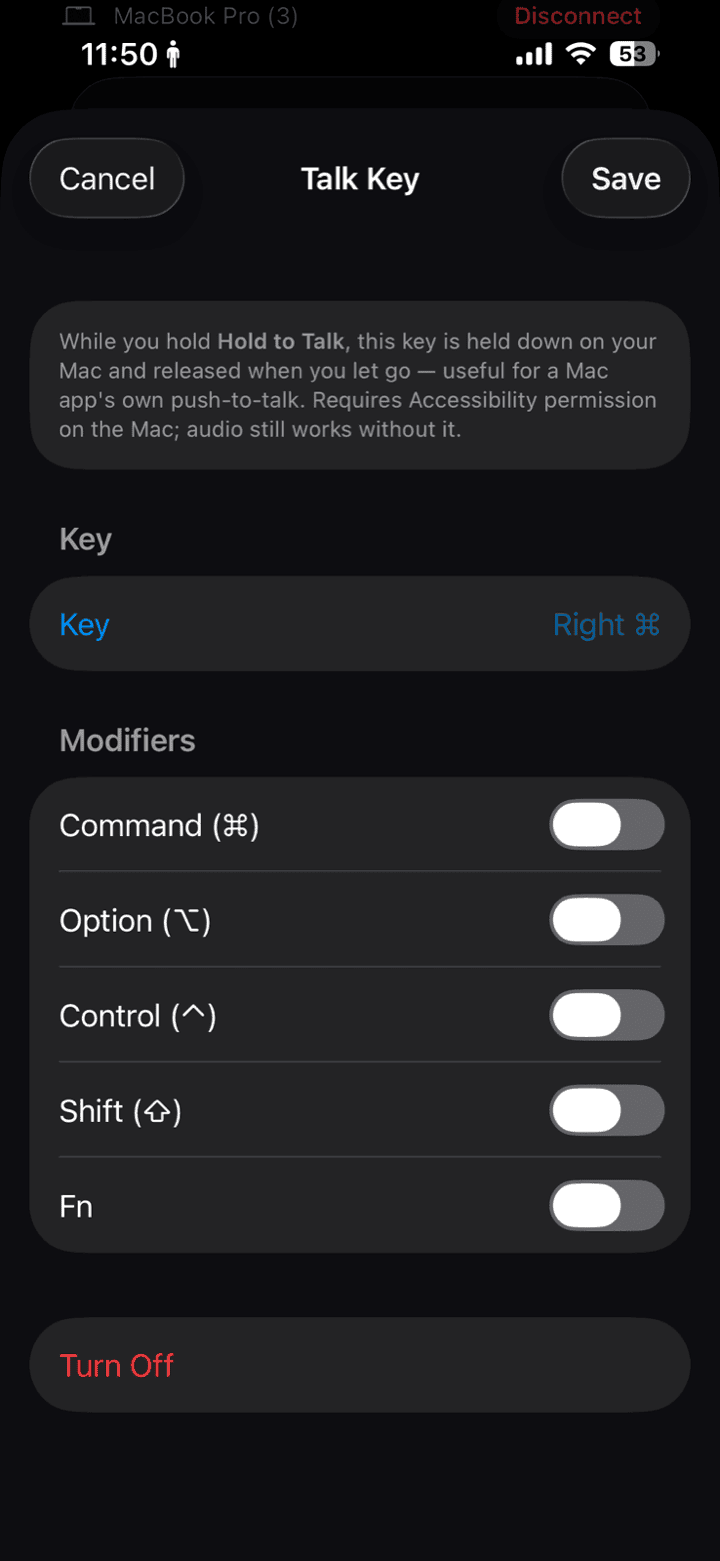
Hold-to-talk works when the chosen Mac shortcut and dictation app support the same press-and-release behavior. Test the full press, speak, release, review sequence in your target app.
Hotkeys are where a tidy setup gets messy
Dictation tools often use keyboard shortcuts, and those shortcuts may overlap. Wispr Flow, Superwhisper, macOS Fn-based dictation, your IDE, and a remote or macro pad can all compete for a key combination. A shortcut that works on the desktop may behave differently while another app is focused or when a modifier key is held.
Write down which action each shortcut should trigger, then test one at a time in the app you use for vibe coding. Prefer a shortcut that is available in your normal workflow, and check the dictation tool’s own settings before assigning the same combination to a second device. If a hold gesture is important, verify that the app responds to both key-down and key-up; a repeated tap is not always equivalent to holding a key.
Your iPhone may already be the vibe coding mic you need
An iPhone has a built-in microphone, a screen, and side buttons. With software that routes the phone’s audio to the Mac and gives you a configurable remote, it can cover microphone input and shortcut control without buying a separate mic and button device. For example, iMic can send iPhone audio to a Mac as an input and use phone buttons to trigger Mac shortcuts. You still choose the dictation app that turns your speech into text and decides how that text enters your AI workflow.
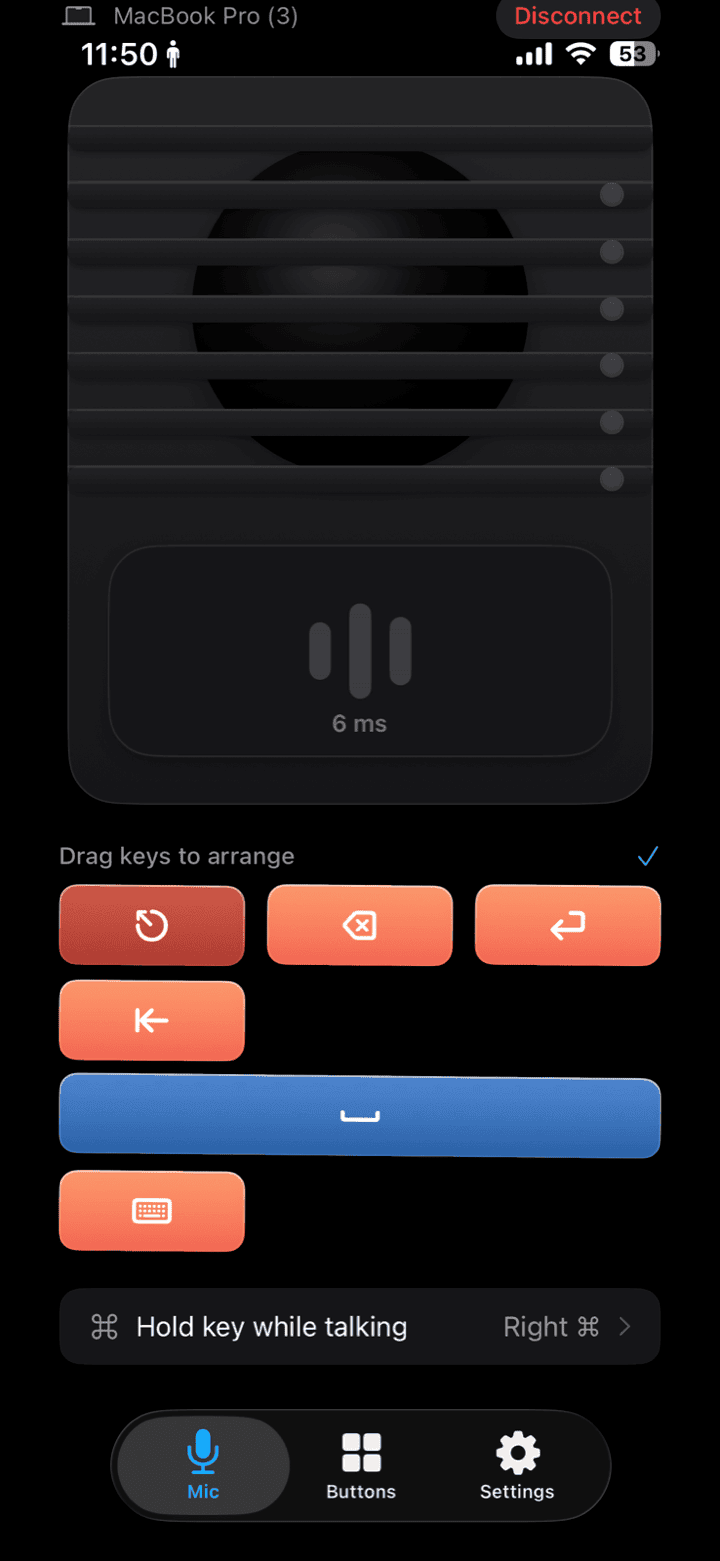
The phone’s buttons can be configured as a remote for Mac shortcuts. Pick a key that does not conflict with your dictation app, then verify its behavior in the app where you write prompts.
This approach is most compelling if you already have the phone nearby and want one device to handle both capture and control. It is less compelling if you need a microphone mounted in a particular place, prefer a dedicated tactile button, or do not want another app in the chain. A lavalier can make sense for the first case; a remote or macro pad can make sense for the second. A ring is another control option, but it is worth checking its specific shortcut support before assuming it will start your dictation app.
A quick way to decide
- Try voice input with the microphone you have now.
- Decide whether your main frustration is audio placement, starting and stopping, or editing the transcript.
- Choose a push-to-talk or toggle behavior that you can use reliably.
- Check shortcut conflicts with Wispr, Superwhisper, Fn dictation, and your other tools.
- Test the complete flow: speak, stop, review, correct, then send.
If you are still deciding whether voice fits your workflow, see using voice for vibe coding in a shared office, hands-free vibe coding, AI dictation software for Mac, and push-to-talk for meetings. The right setup can be as small as the phone you already own. Start there, and add hardware only when you can name the friction it removes.
If you'd like to try an iPhone as both a Mac microphone and shortcut remote, take a look at iMic. Use the setup that fits how you code, and keep transcript review in the loop if it helps you stay in control.
Ready to try iMic?
Turn your iPhone into your Mac’s microphone and shortcut remote. $5.99/year with a 7-day free trial, or $9.99 for a lifetime license on two Macs.
Get iMic